
Add a recipe
Save a recipe from a website, a cookbook, another recipe app or anywhere else. Click the add button () in the header to start.
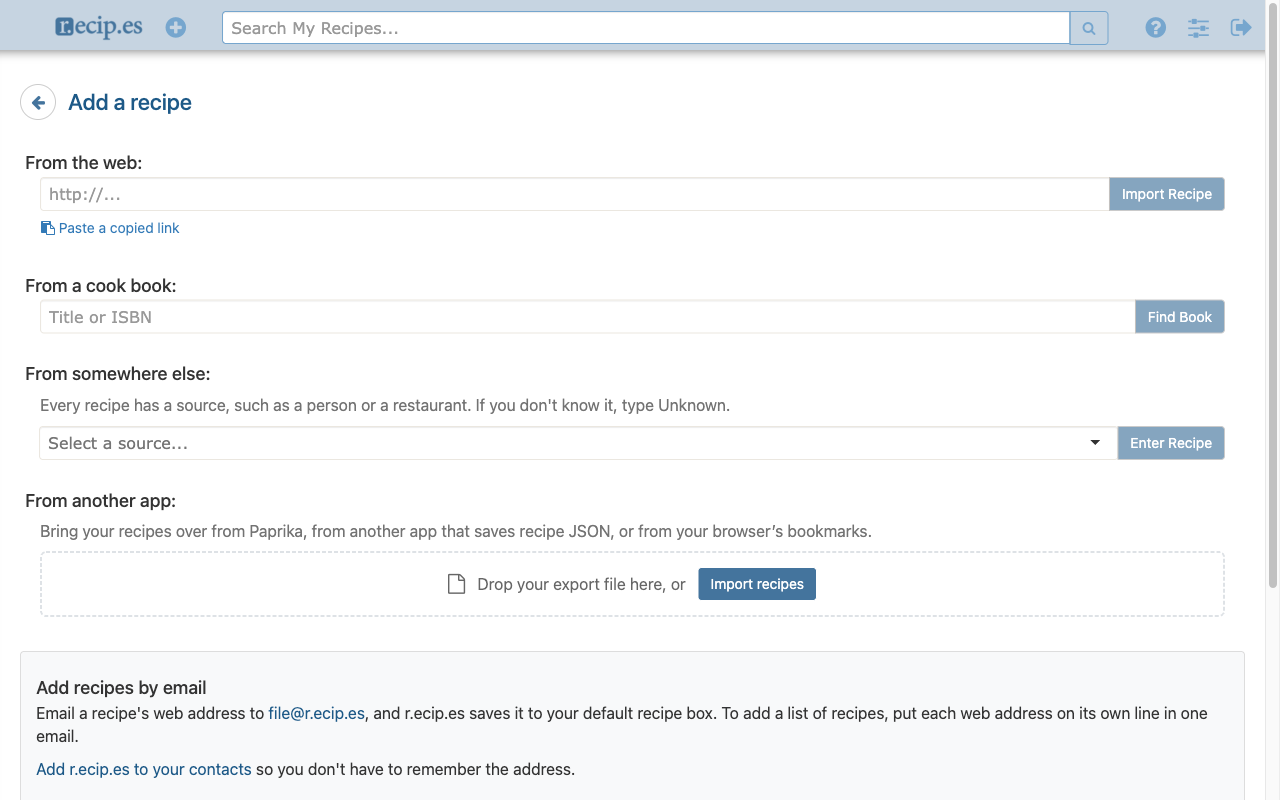
From a website
- Copy the recipe's web address.
- Paste it under From the web and click Import Recipe.
- Check the recipe in the form that opens, add a photo or tags if you like, and click Save.
Shortcut: paste a recipe link anywhere in your recipe box, outside a text box, and it opens straight in the form. On a phone with the app installed, share the page to r.ecip.es instead.
If the recipe is already in your recipe box, r.ecip.es opens the one you saved instead of adding it twice.
r.ecip.es saves the largest copy of the recipe's photo it can find, from the page or from the site's own image service, so a photo stays sharp in print. The first photo in the form is the largest.
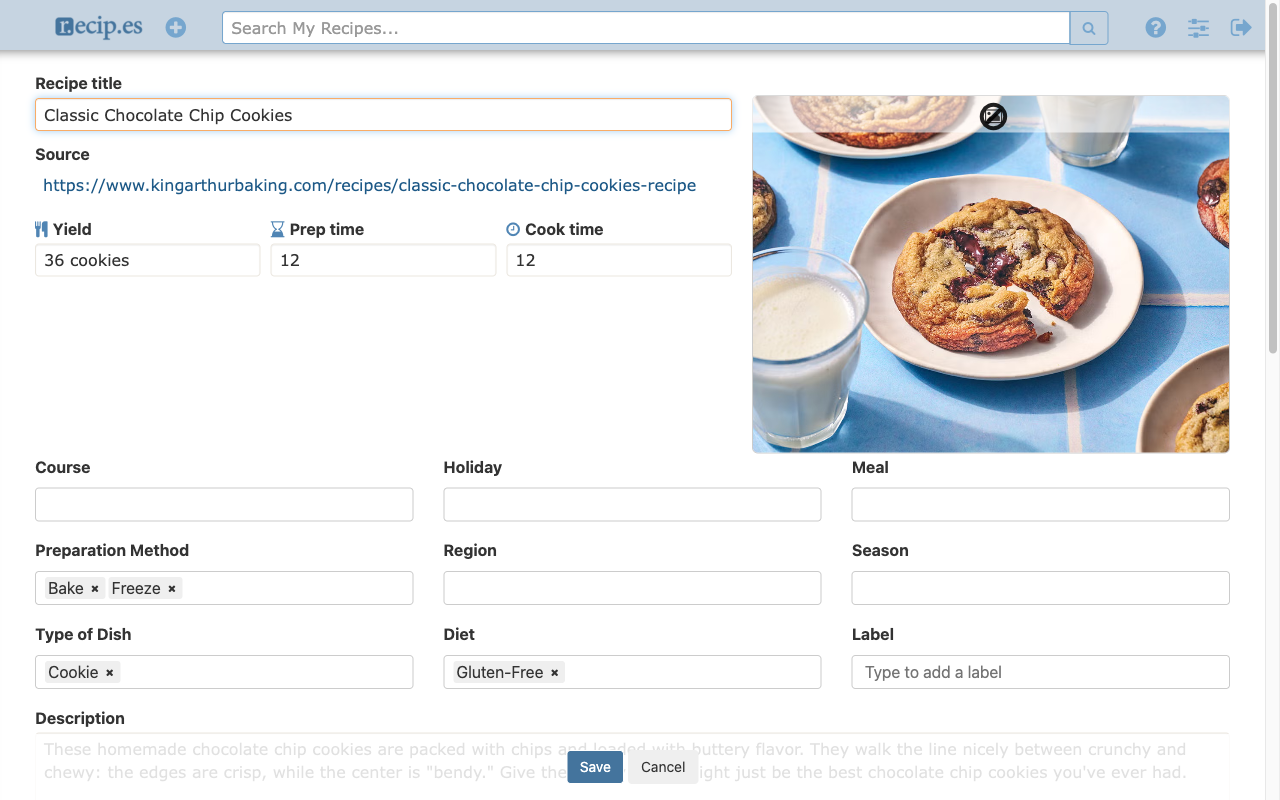
With the bookmarklet
On a computer, the Save Recipe bookmarklet is the simplest way to save a recipe: click it on any recipe page and the recipe opens in your recipe box, ready to save.
By email
Email or forward recipe links to file@r.ecip.es. r.ecip.es saves each link to your default recipe box and replies with a list of what it saved.
- Send from your account's email address, or another address you've added and confirmed.
- Put links in the email. r.ecip.es reads links, not recipe text or attachments.
- r.ecip.es skips links already in your recipe box.
- Each recipe gets the largest copy of its photo r.ecip.es can find, as from a website.
From a cookbook
- Under From a cook book, type the book's title or ISBN and click Find Book.
- Tap your book, then Add photo of recipe.
- Add a photo of each page of the recipe, up to 4, and tap Read recipe.
- r.ecip.es reads the pages and fills in the form. If the page has more than one recipe, choose the one you want. Check any lines it marks as hard to read, then click Save.
r.ecip.es saves the book as the recipe's source, with its page number. If it can't read a photo, try a sharper one, or choose Or type it in.
From pasted text
Copy a whole recipe from anywhere, such as a document or a site that won't import, and paste it into Recipe title in the form. r.ecip.es splits it into the title, ingredients, steps, servings and times. It only fills boxes that are empty.
Type it in
Under From somewhere else, pick or type where the recipe is from (or "Unknown") and click Enter recipe.
From another recipe app
Bring all your recipes over at once from Paprika, from another app that exports recipe JSON, or from your browser's bookmarks. They go into the recipe box that's open, so you need to be able to edit it.
- In Paprika, export your recipes in the Paprika Recipe Format: File > Export on a Mac, or the share button, then Export, on a phone or tablet. You get a file ending in .paprikarecipes.
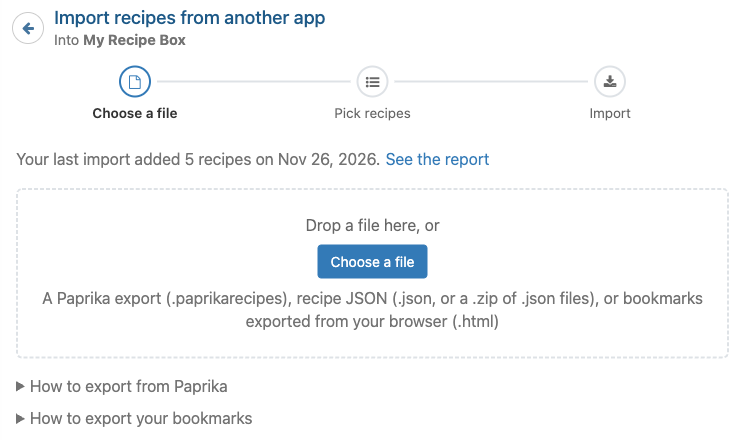
- In r.ecip.es, click the add button (). Under From another app, drop your file on the box, or click Import recipes.
- If you clicked Import recipes, drop the file on the page or click Choose a file. r.ecip.es reads the file in your browser and sends nothing yet.
- Pick the recipes you want. To narrow the list, click Filter, then type part of a title or click a category. Select all and None work on the recipes shown.
- Click Import. You can import up to 5,000 recipes at a time.
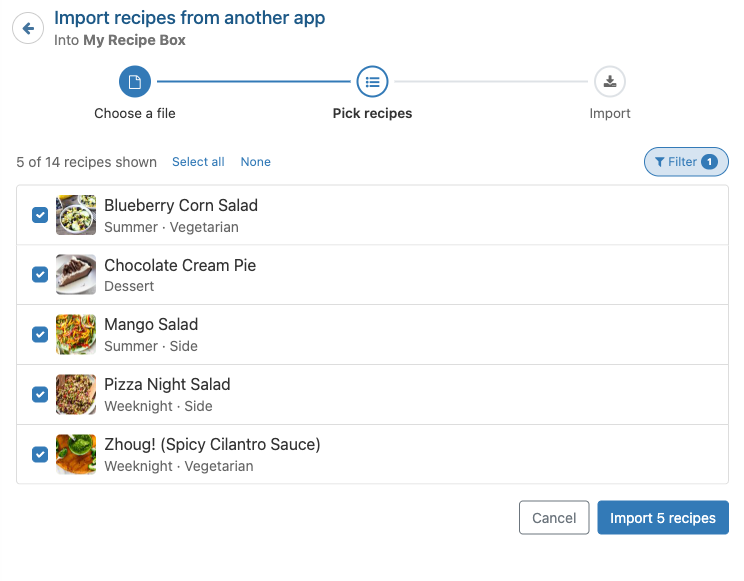
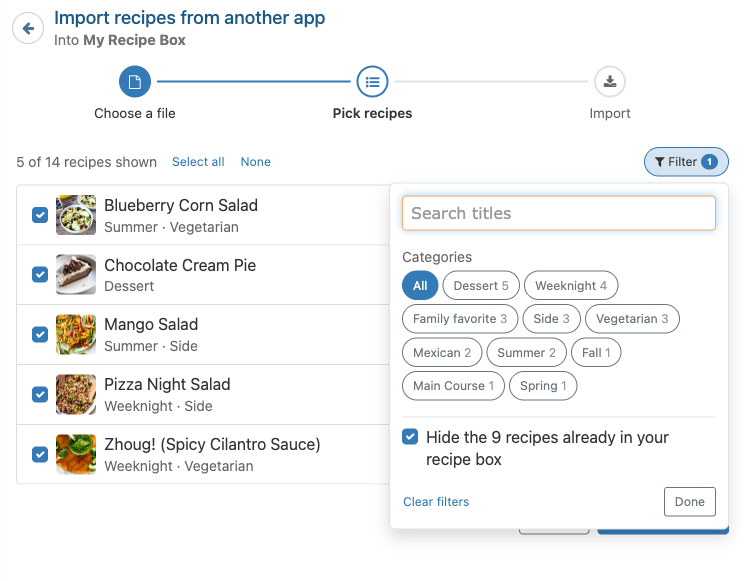
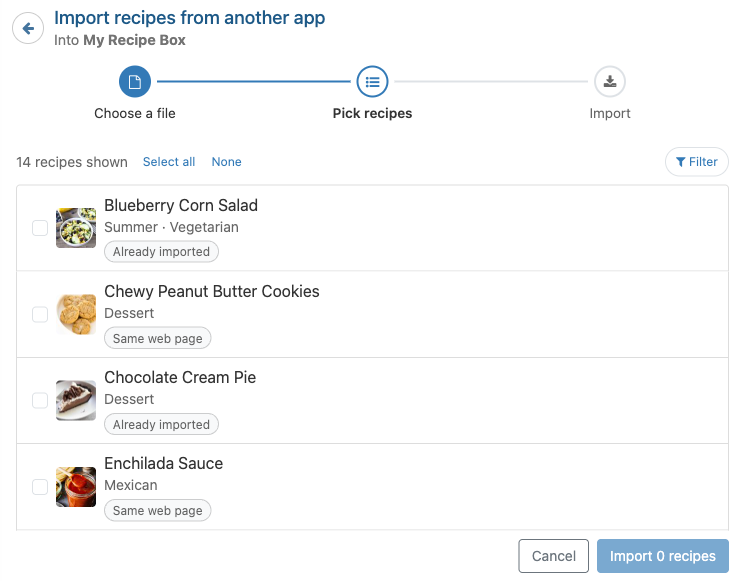
Recipes that look like ones you already have start unchecked and hidden. r.ecip.es marks each one Already imported, Same web page or Same title. To see them, click Filter and clear Hide the recipes already in your recipe box. Recipes in Paprika's trash start unchecked too.
While your recipes are sending, you can keep using r.ecip.es, but don't leave the site: that stops the sending, and your browser asks first. Once everything is sent, the import carries on by itself. To see how it went, open Import recipes again and click See the report, or See its progress while it's still running.
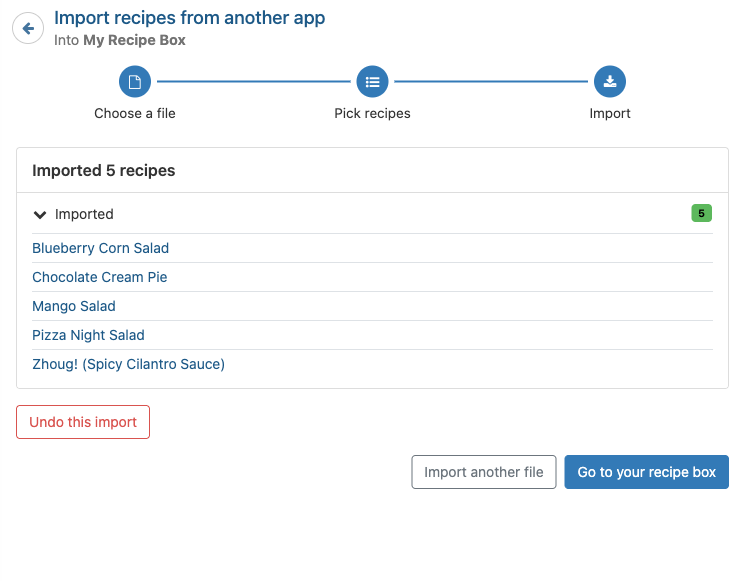
The report shows a row for each outcome. Click a row to list its recipes. It counts what it Imported, what was Already in your recipe box, what was Not sent and what it Couldn't import, such as a recipe with no title and no ingredients. If some recipes didn't send, import the file again: the ones already imported show as already in your recipe box.
Each recipe brings its title, ingredients, steps, description, servings, rating, prep and cook times, the date you added it, its main photo (JPEG or PNG up to 8 MB), and its source. Paprika's notes, nutrition and difficulty become a note on the recipe. Categories become tags, using a tag you already have when one matches, and favorites get a Favorite label. r.ecip.es doesn't import extra photos or total time.
From recipe JSON
Some recipe apps export recipes as recipe JSON, a standard format for recipes on the web. At step 1, choose the .json file, or a .zip of .json files. The rest works the same way as Paprika. A recipe counts as already in your recipe box if it has the same id in the file, the same web page or the same title.
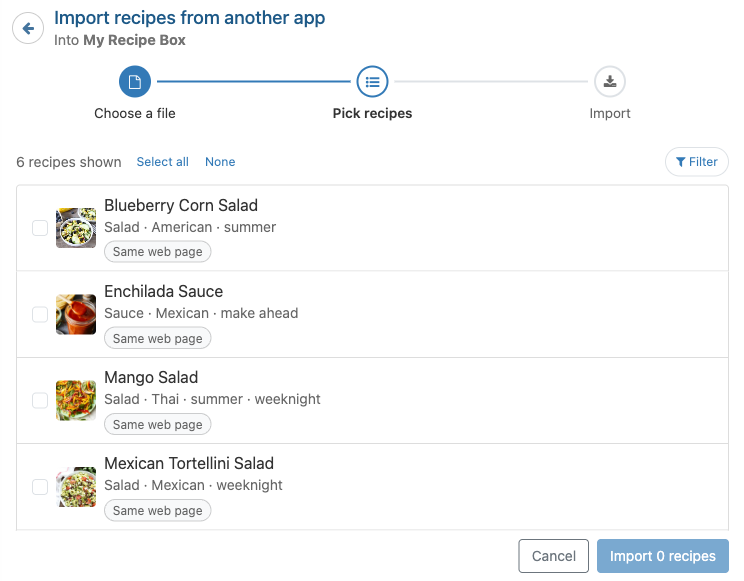
Each recipe brings its title, ingredients, steps, description, servings, prep and cook times, the date it was created, and its first image. Nutrition becomes a note on the recipe. r.ecip.es uses the recipe's web page or its author as the source, or the file's name when it has neither. Categories, cuisines and keywords become tags or labels, and diets such as vegan become Diet tags. r.ecip.es doesn't import total time or public ratings.
From your bookmarks
Saved recipes as bookmarks? Import them all at once.
- Export your bookmarks from your browser as an .html file. In Chrome or Edge, open the bookmark manager and choose Export bookmarks. In Firefox, open Manage bookmarks, then Import and Backup, then Export Bookmarks to HTML. In Safari on a Mac, choose File > Export > Bookmarks.
- Choose the file at step 1 of Import recipes.
- To show just one folder, click Filter, then the folder. Pick the bookmarks you want and click Import.
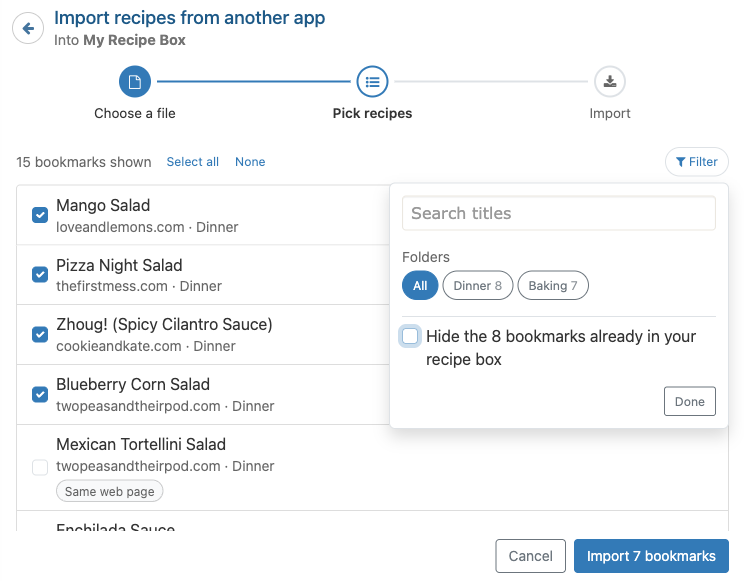
r.ecip.es opens each page and reads its recipe, just as when you save a recipe from a website. It takes the date you bookmarked a page as the date you added the recipe. It doesn't turn folders into tags. A bookmark counts as already in your recipe box only when it's the same web page.
r.ecip.es waits a few seconds between pages from the same site, so a big bookmarks file takes a while. Keep using r.ecip.es while it runs.
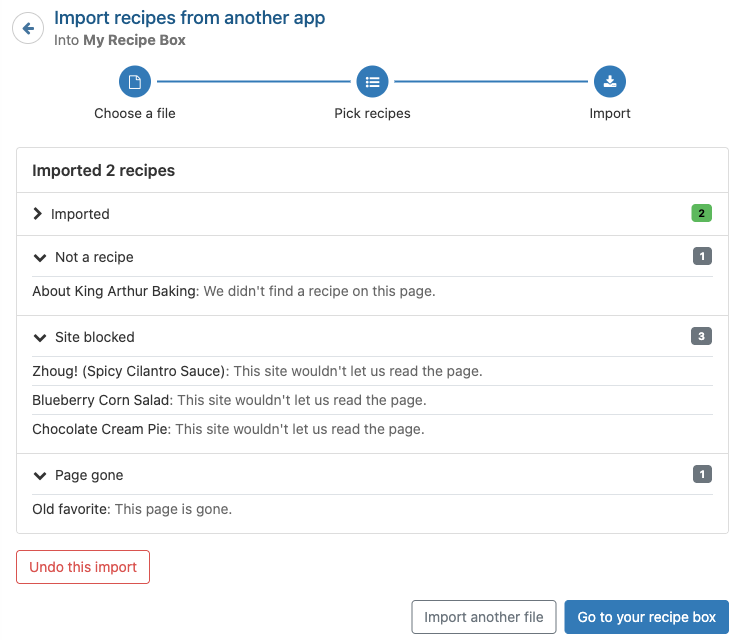
The report lists what r.ecip.es imported and what it skipped: Not a recipe when it didn't find a recipe on the page, Site blocked when the site wouldn't let it read the page, and Page gone when the page no longer exists. For a blocked site, try the bookmarklet on that page.
Undo an import
Imported the wrong recipes? Open Import recipes, click See the report for your last import, and click Undo this import. r.ecip.es asks first: click Delete to confirm, or Keep them to change your mind. It removes every recipe that import added, including ones you've changed since, and never touches recipes that were already in your recipe box. The report then lists them as Removed by undo.
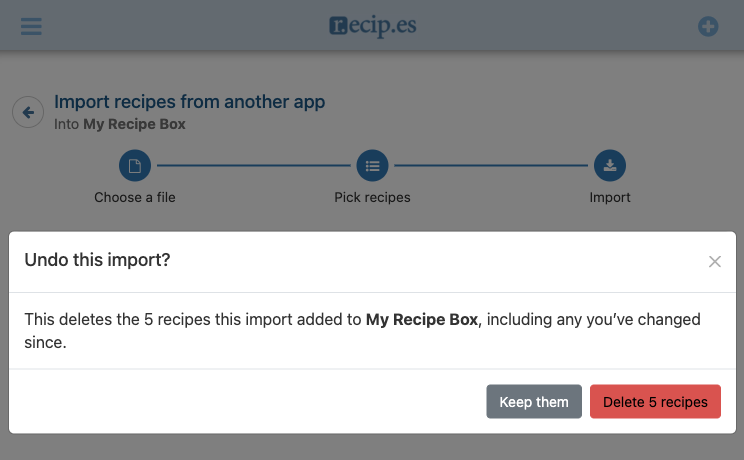
You can't undo an import that's still running, or one whose recipes are already gone. Labels the import created go away within about an hour.
When a site won't import
- "This site wouldn't let us read the recipe." The site blocks r.ecip.es. Use the bookmarklet, or open the recipe, copy all of it and paste it into Recipe title.
- "Failed to find a recipe at that address." Check that the link opens the recipe itself, not a list or a search page.
- Recipes behind a paywall or a sign-in only import if you can see them, so use the bookmarklet while signed in to that site.
Still stuck? Email support@r.ecip.es.