
Sign in and devices
Sign in with your Google account. There's no separate password to remember.
Sign in
- Go to r.ecip.es and click Sign in with Google.
- Choose your Google account. The first time, r.ecip.es creates your account and your own recipe box.

See and sign out your devices
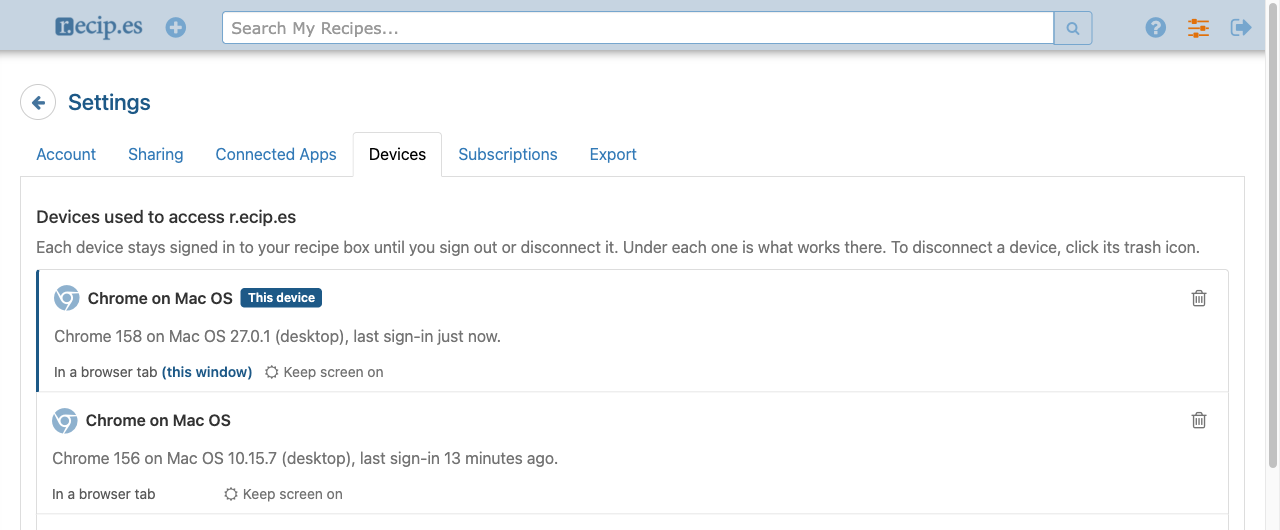
Device Settings lists every browser and app signed in to your account. It shows when and roughly where you last used each one.
- To sign a device out, click its trash icon (). If it's the device you're using, r.ecip.es asks first, then signs you out.
- To sign out of the device in front of you, click the sign-out icon () in the header.
- The device you're using is marked This device.
- Under each device are the features that work there, such as Cook mode timers () and keeping the screen on (). A device lists these after you use r.ecip.es on it, so one you haven't opened in a while may list nothing yet.
Connect a device with an access code
Some devices won't open a Google sign-in form in the same browser session, such as r.ecip.es on your home screen. To sign in on one of these devices, get an access code from a device where you're already signed in. Click Settings (), then Devices, then New Device Access Code. Type the 6 digits into the new device within 2 minutes. Use both devices in the same area: a code entered from far away doesn't work. See Use r.ecip.es as an app.
Add another email address
If you email recipes from more than one address, add the others. Click Settings (), then Account. Under Email addresses, type the address and click Add. Then click the link in the confirmation email. Until you do, the address shows Not confirmed. To remove an address, click the trash can (); click Undo if you didn't mean to. A confirmed address can send recipes to file@r.ecip.es and can get the weekly menu email.
Time zone
To set your time zone, click Settings (), then Account, and choose it from the list or click Use your current time zone. Your time zone sets when your weekly menu email arrives and the times of meals you schedule.
Still stuck? Email support@r.ecip.es.