
Use r.ecip.es as an app
Add r.ecip.es to your home screen and it opens full screen, like any other app. There's nothing to download from an app store.
iPhone and iPad
- Open r.ecip.es/recipe-box in Safari and sign in.
- Tap the Share button, then Add to Home Screen, then Add.
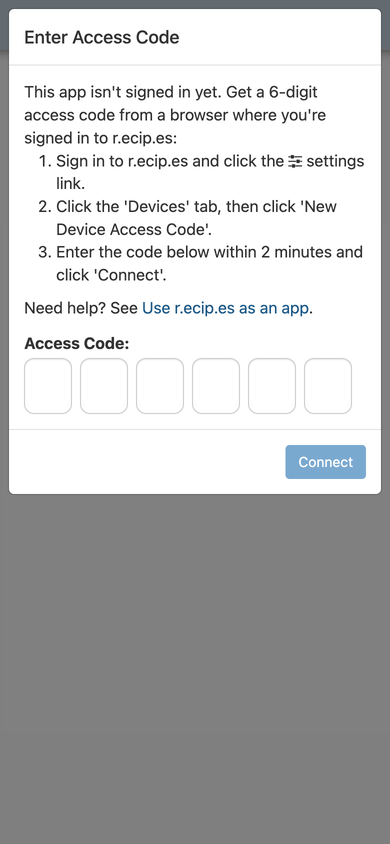
- Open r.ecip.es from your home screen. The app keeps its own sign-in, separate from Safari, so the first time it asks for an access code.
- In Safari, or on any device where you're signed in, tap Settings (), then Devices, then New Device Access Code.
- Type the 6-digit code into the app and tap Connect. The code works for 2 minutes.
Android
- Open r.ecip.es/recipe-box in Chrome and sign in.
- Tap Chrome's menu (), then Add to Home screen or Install app.
- Open r.ecip.es from your home screen. If it asks for an access code, follow steps 4 and 5 for iPhone above.
Once it's installed, you can save recipes straight from other apps. In Chrome or a recipe app, tap Share and choose recipes, the name r.ecip.es has on your home screen. The recipe opens in the edit form, ready to check and save.
Computer
In Chrome or Edge, open your recipe box and click the install icon at the right of the address bar, or choose the install option in the browser menu. The app is called Recipe Box. In Safari on a Mac, open your recipe box and choose File, then Add to Dock. If the app asks for an access code, follow steps 4 and 5 for iPhone above. On a computer you don't need the app for timers: they work in any browser tab. To save recipes from any site on a computer, use the Save Recipe bookmarklet.
Connecting apps from the app
In the app, click Settings (), then Connected Apps, then the app you want, such as Google Calendar or Kroger. Click Connect, and it opens in your browser. Check that it names your account and click Continue, then sign in and allow access. When it says you're connected, close it to come back to r.ecip.es, which shows the app as connected. A connection belongs to your account, so it works on all your devices.
Signing out of the app
On any device, click Settings (), then Devices. Then click the trash icon () next to the one you want to sign out. See Sign in and devices.
Still stuck? Email support@r.ecip.es.