
Plan meals on Google Calendar
Put a recipe on your Google Calendar as a meal, with a link back to the recipe.
Connect Google Calendar
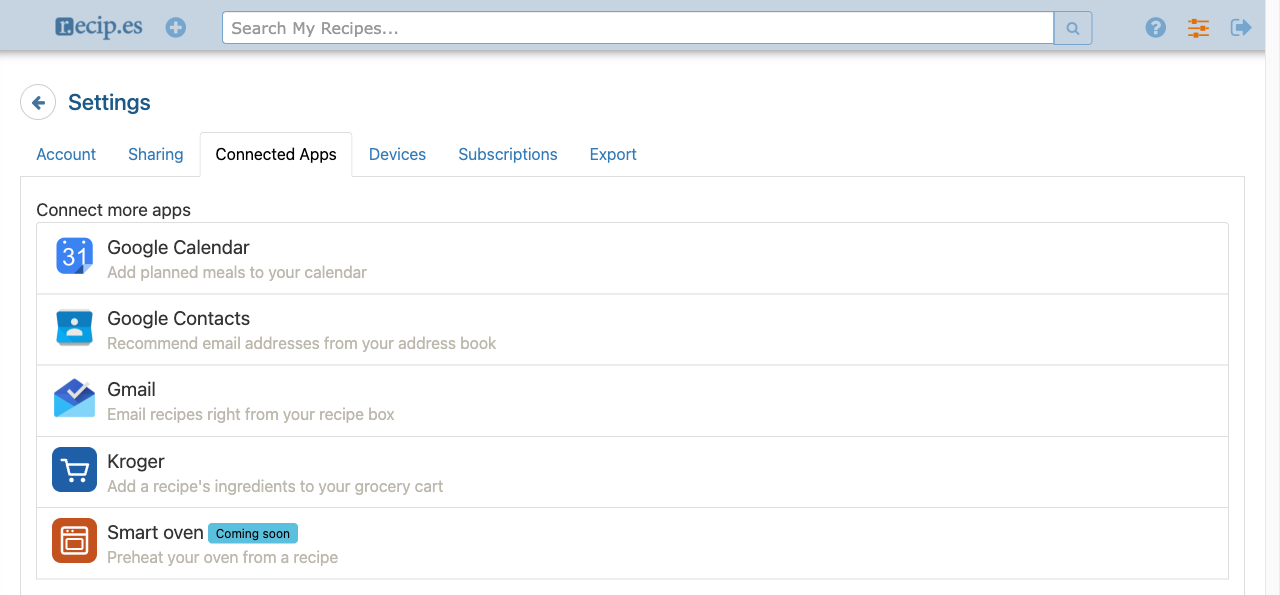
- Click Settings (), then Connected Apps, then Connect Google Calendar.
- Sign in to Google in the window that opens and allow access. The window closes when you're connected.
- Choose the Calendar meals go on, your Default Meal Time and the Meal Duration. r.ecip.es saves them as you change them.
Schedule a meal
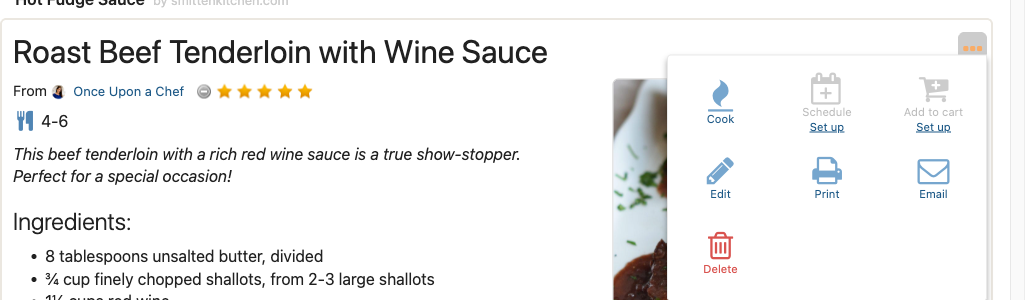
- Open a recipe, click its menu () and choose Schedule. Until Google Calendar is connected, it says Set up and opens Connected Apps.
- Pick a date and time and click OK. The calendar highlights days that already have meals.
r.ecip.es names the event after the meal and the recipe, such as "Dinner: Roast Beef Tenderloin with Wine Sauce", and links it to the recipe. It calls a meal up to 9 AM Breakfast, up to 11 AM Brunch, up to 2 PM Lunch, and later Dinner.
What r.ecip.es reads, keeps and shares
What Google lets r.ecip.es do
Google asks you to let r.ecip.es see the list of your calendars, and view and edit events on them. r.ecip.es can't share, rename or delete a calendar. It uses that access for three things:
- It lists the calendars you can add events to, so you can choose one in Connected Apps.
- It adds the meals you schedule.
- It reads back the meals it added, to highlight days that have meals for the next 60 days, and to see whether you moved or deleted a planned meal. It marks each meal it adds, and doesn't read your other events.
What r.ecip.es keeps
- r.ecip.es keeps the key Google gives it to reach your calendar, until you disconnect Google Calendar or cancel your account.
- r.ecip.es keeps your Calendar, Default Meal Time and Meal Duration choices.
- For each meal you schedule, r.ecip.es adds an entry to the recipe's history with the meal's time and the calendar event's ID, so it can tell when the meal moves or goes away.
What r.ecip.es sends to Google
For each meal, r.ecip.es sends Google the event's title (the meal and the recipe's name), its start and end times, and a link to the recipe in your recipe box. It sends nothing else from the recipe.
Disconnect Google Calendar
Click Settings (), then Connected Apps, then Google Calendar, then Disconnect Google Calendar. Meals already on your calendar stay there. r.ecip.es deletes its connection to your calendar. To take away its access on Google's side too, remove r.ecip.es on your Google Account's third-party connections page. That also disconnects your other Google apps in r.ecip.es, but you can still sign in with Google.
Still stuck? Email support@r.ecip.es.