
Cook mode
Cook mode shows a recipe large and clear, keeps your place, times your steps and keeps your screen on.
Open Cook mode
Open a recipe, click its menu () and choose Cook. To leave, click the × or press Escape.
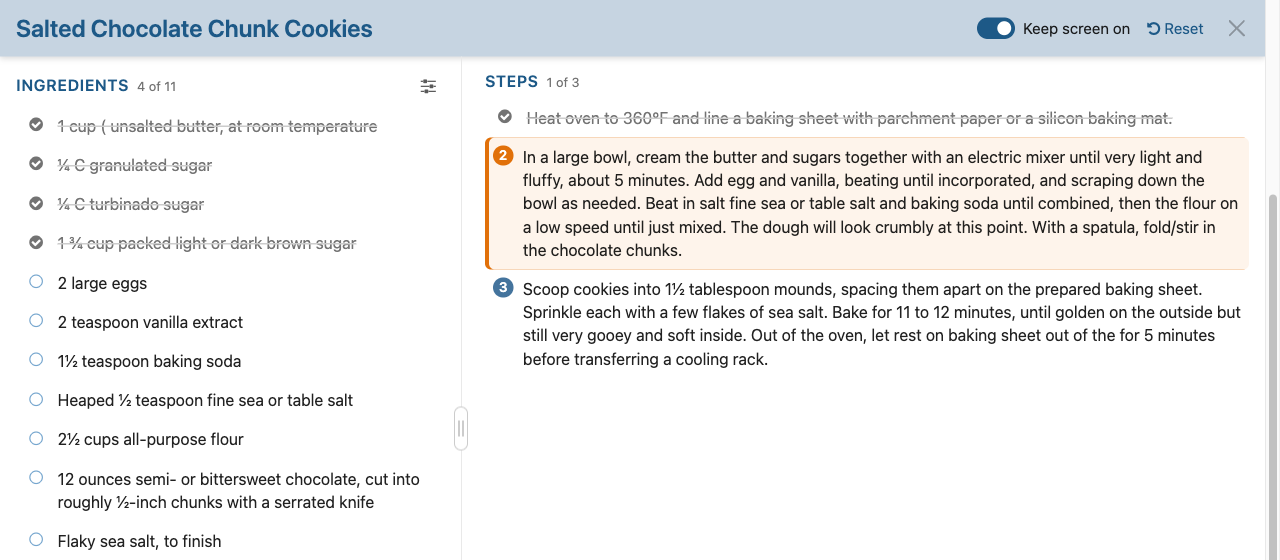
Keep your place
- Tap an ingredient or step to check it off. On a phone, you can also swipe left to check and right to uncheck.
- The step you're on is highlighted. When every step is checked, you'll see "All done. Enjoy!"
- Reset clears your checks. Checks stay on this device for 12 hours, and clear if the recipe is edited.
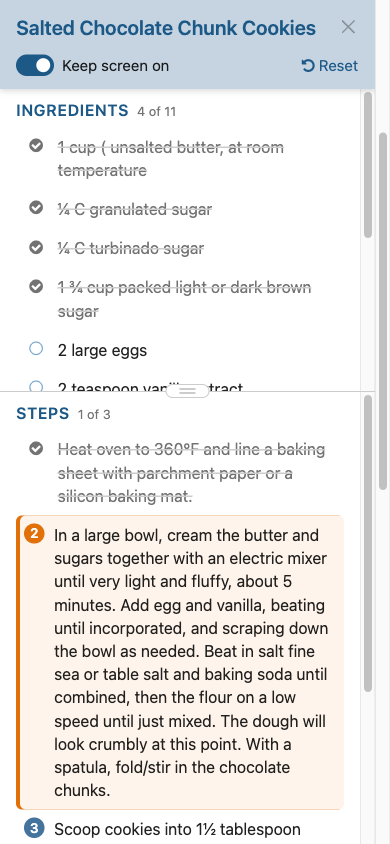
- Drag the grip on the line between ingredients and steps to give either one more room. r.ecip.es remembers where you leave it on each device.
Scale a recipe and change units
- Click the sliders button () beside Ingredients.
- Choose ½×, 1×, 2× or 3×. If the recipe says how many servings it makes, you can choose Servings instead and set how many you need.
- Under Units, choose US or Metric. r.ecip.es remembers your choice, and oven temperatures in the steps switch between °F and °C too.
While a recipe is scaled, the button shows the scale, such as 2×, and the servings under the title change to match. Scaling in Cook mode doesn't change the saved recipe. A line marked "not scaled" or "partly scaled" needs a look, and amounts written in the steps stay as they are.
Set a timer
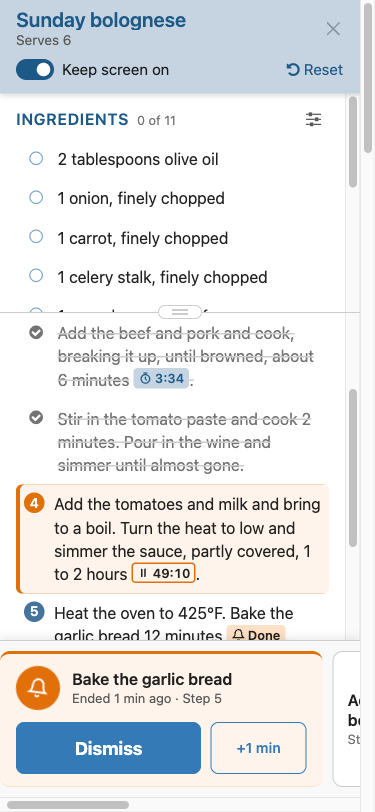
Times in the steps, such as "bake 25 minutes", show in blue with a small clock () after them. Tap one to start a timer. Oven temperatures and words like "overnight" don't get one.
- For a range, such as "5-10 min", tap it to choose a time, then tap Start.
- A running timer shows the time left after its words in the step. Timers also sit in a row along the bottom of Cook mode, the one with the least time left first, each named for its step. Swipe the row to see more. Pause one (), add a minute (+1) or cancel it (). Tap a timer's name to go to its step.
- When a timer ends, it chimes and turns orange until you tap Dismiss. Phones that can vibrate buzz too.
- Timers keep running when you close Cook mode, open another recipe or reload the page. The clock () in the top bar shows the next to end. Click it to see them all and go back to a step.
Hear a timer with the screen off
A timer sends you an alert when it ends, even with your screen locked or r.ecip.es closed. The alert repeats each minute until you dismiss the timer, for up to 10 minutes. Click the alert to go back to r.ecip.es at the timer's step, in the tab where that recipe is open, or a new one if none is.
- When you start your first timer, your browser asks to allow notifications from r.ecip.es. Allow them, or timers can't start.
- If you blocked notifications, allow them for r.ecip.es in your browser's settings, then reload the page.
- On an iPhone or iPad, timers only work when you open r.ecip.es from your home screen. See Use r.ecip.es as an app.
- On a computer, the alert comes as long as your browser is open. If you close your last r.ecip.es window while a timer is going, your browser asks first. Keep the browser open until the timer ends.
- To see which of your devices can use timers, click Settings (), then Devices.
Keep the screen on
Keep screen on stops your phone or tablet from going dark while you cook. It's on to start with, and r.ecip.es remembers your choice on each device. It only shows in browsers that support it.
Smart oven Coming soon
In a recipe that heats the oven, the words that do it are a link with a flame (), like Preheat your oven to 350 degrees. Click it to tell us which oven you have. See Preheat your oven from a recipe.
Still stuck? Email support@r.ecip.es.