
Recipe boxes and sharing
Share your recipe box with family and friends. Choose whether each person can only look, or can add and change recipes too.
Your recipe box and shared ones
Everyone has one recipe box of their own, called My Recipe Box. When someone shares theirs with you, a Recipe box menu appears at the top of the left panel so you can switch between them.
Your Default recipe box opens when you open r.ecip.es, and r.ecip.es saves recipes you email to file@r.ecip.es there too. To change it, click Settings (), then Account, and choose it under Default recipe box.
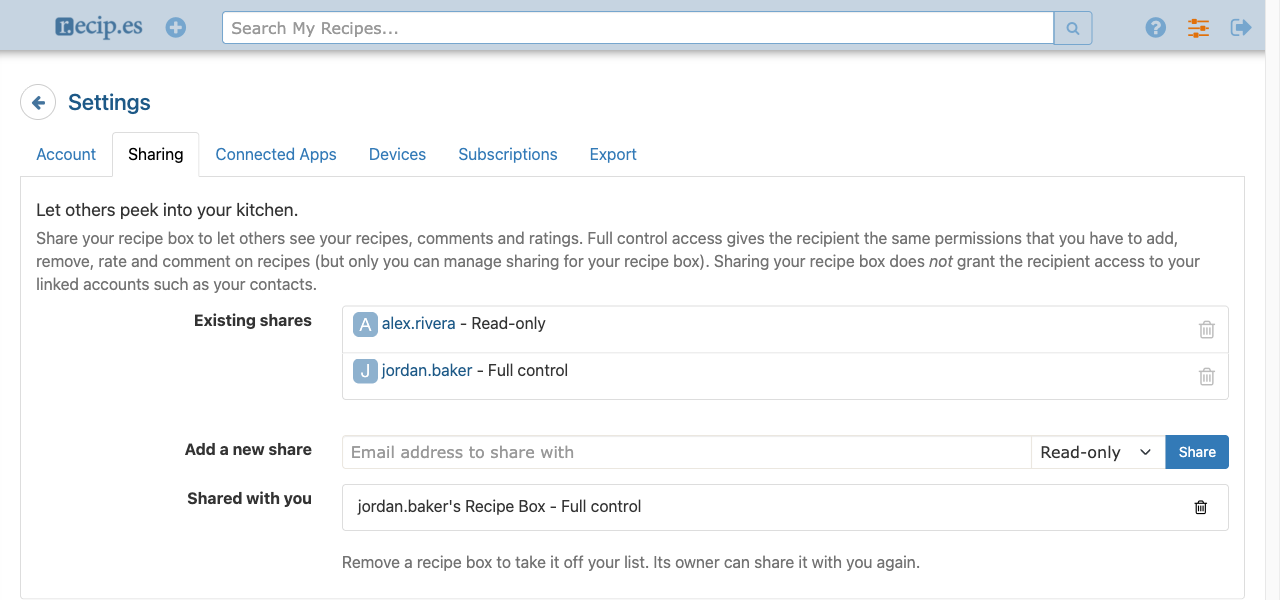
Share your recipe box
- Click Settings (), then Sharing.
- Type the person's email address under Add a new share.
- Choose Read-only or Full control, then click Share.
They get an email with a link to your recipe box. If they don't have an account yet, they sign in with Google using that email address and your recipe box is there.
What each level can do
| Read-only | Full control | You (owner) | |
|---|---|---|---|
| See recipes, search, cook | Yes | Yes | Yes |
| Save a copy to their own recipe box | Yes | Yes | No |
| Export the recipe box | Yes | Yes | Yes |
| Add, edit, rate, tag and delete recipes | No | Yes | Yes |
| Share it, or stop sharing it | No | No | Yes |
Sharing your recipe box doesn't share your connected apps, such as your calendar or Kroger account.
Change or stop sharing
To change someone's level, share with them again and choose the other level. To stop sharing, click the trash icon () next to their name under Existing shares. If your recipe box was their default, theirs goes back to their own.
Remove a recipe box shared with you
Under Shared with you in Settings, then Sharing, click the trash icon () next to a recipe box and confirm. It leaves your recipe box menu. Its owner can share it with you again later.
Still stuck? Email support@r.ecip.es.